

-
Products
Overview Products

-
2D Cutting
-
Tube Cutting
-
3D Cutting
-
Intelligent Welding
-
Intelligent Cutting Head
-
Industrial Automation
-
Industrial Software
-
Combination
-
Combination
BOCHU New Product -
Combination
BOCHU New Product -
Controller
BOCHU New Product -
2D Cutting Head
Tube Cutting Head
3D Cutting Head
Consumables
BOCHU New Product -
Servo
BOCHU New Product -
Industrial 4.0
-
- Support
- About
- Online Store



品列表圖片_514x337.png)



品頁規(guī)格型號.png)

品列表.png)



- Software Download
- Manual
- Tutorial
- CloudNest
Function Description
Extract part information from a 3D model file in the IFC format, automatically sort out H-beams and box beams from the model, and then split the sorted profiles, achieving seamless integration between steel structure profiles and flat nesting, and flat cutting systems. This process enables these profiles to be more conveniently used in subsequent manufacturing and processing workflows
?
Export parts from Tekla
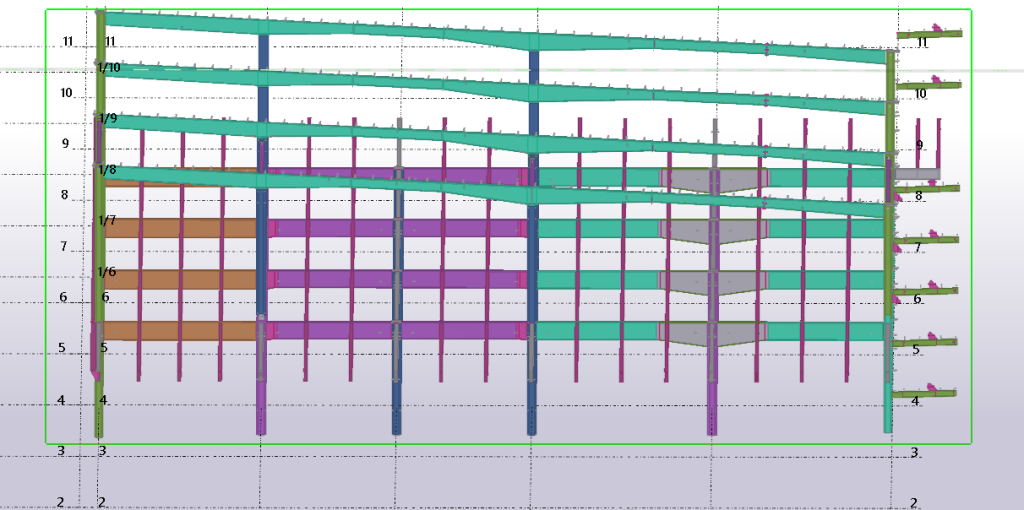
Open any project in Tekla. Use the mouse to select the part of the model that needs to be split.?
Select "File" from the main menu in Tekla, and then select the "Export" submenu.?
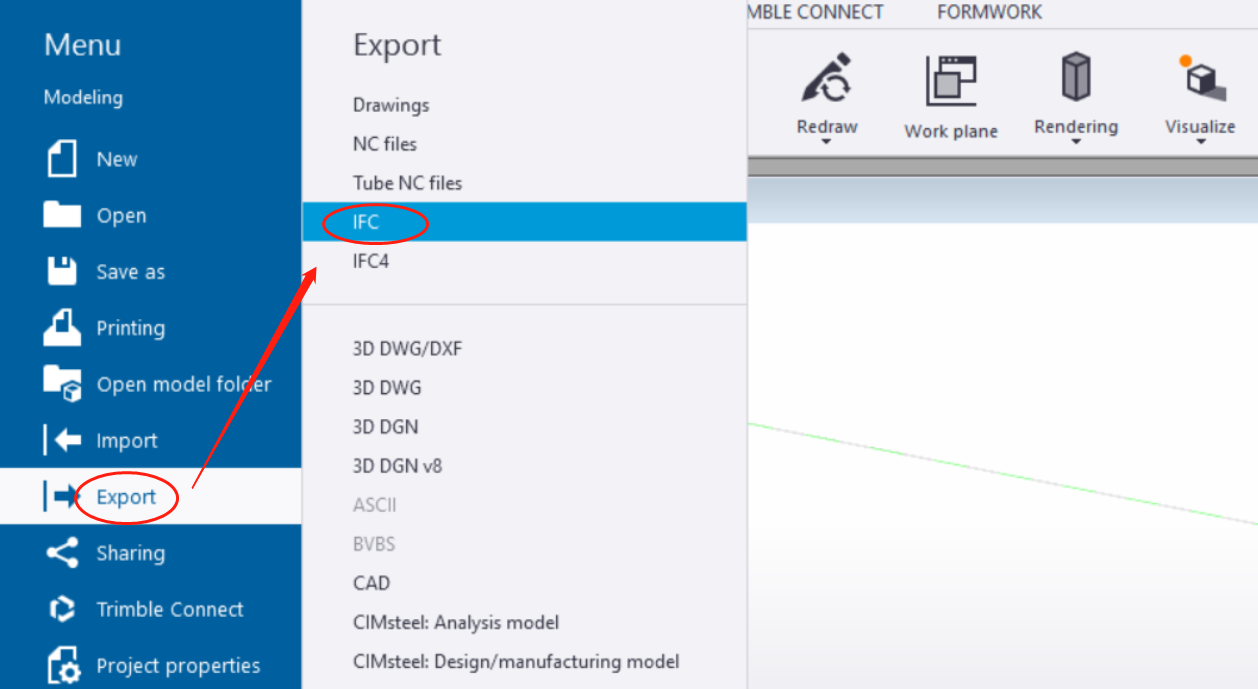
In the "Export" dialog box that appears, select the IFC file format you want to export to and?set the path to Output File in the pop-up window.
?
If you need to display bolt holes, select the 'Steel Structure View' as the Export type.
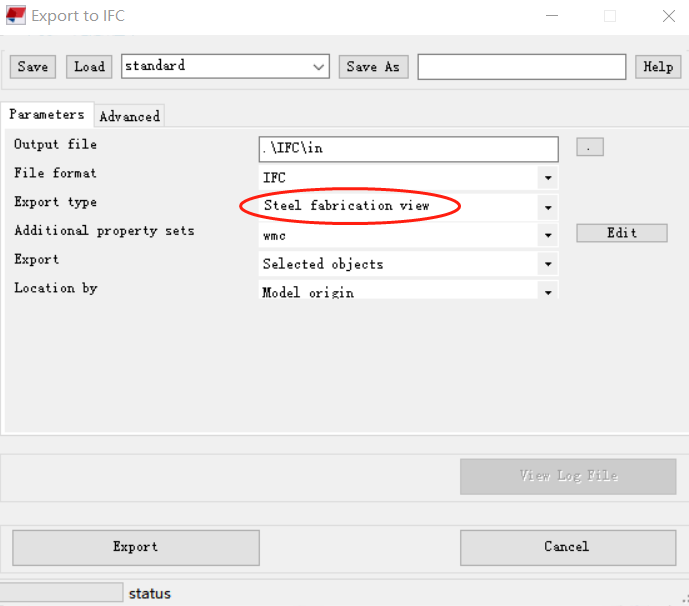
?
Click on 'Edit' to make necessary additional settings for the Additional property sets.
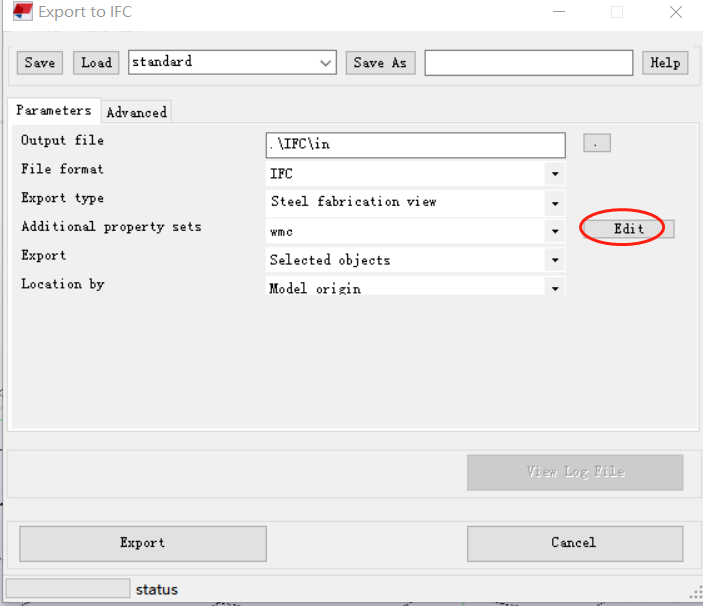
?
On the attribute setting definition interface, begin by naming the property for easy reference in future use.
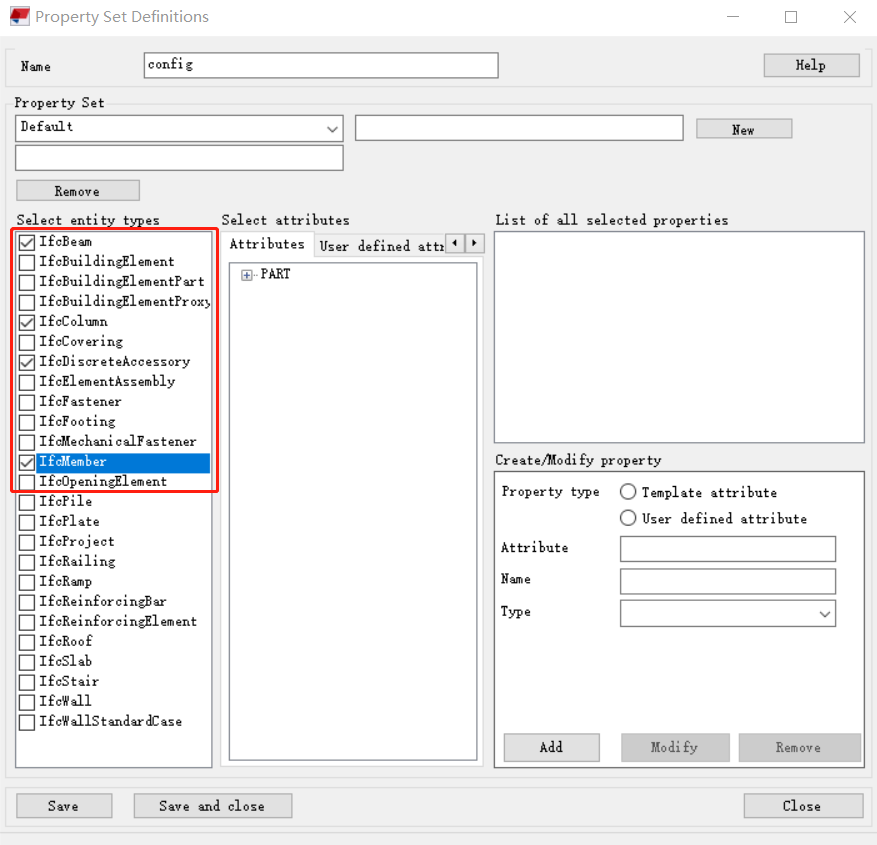
Next, select the entity types and check the following four types: IfcBeam, IfcColumn, IfcDiscreteAccessory, and IfcMember.
?
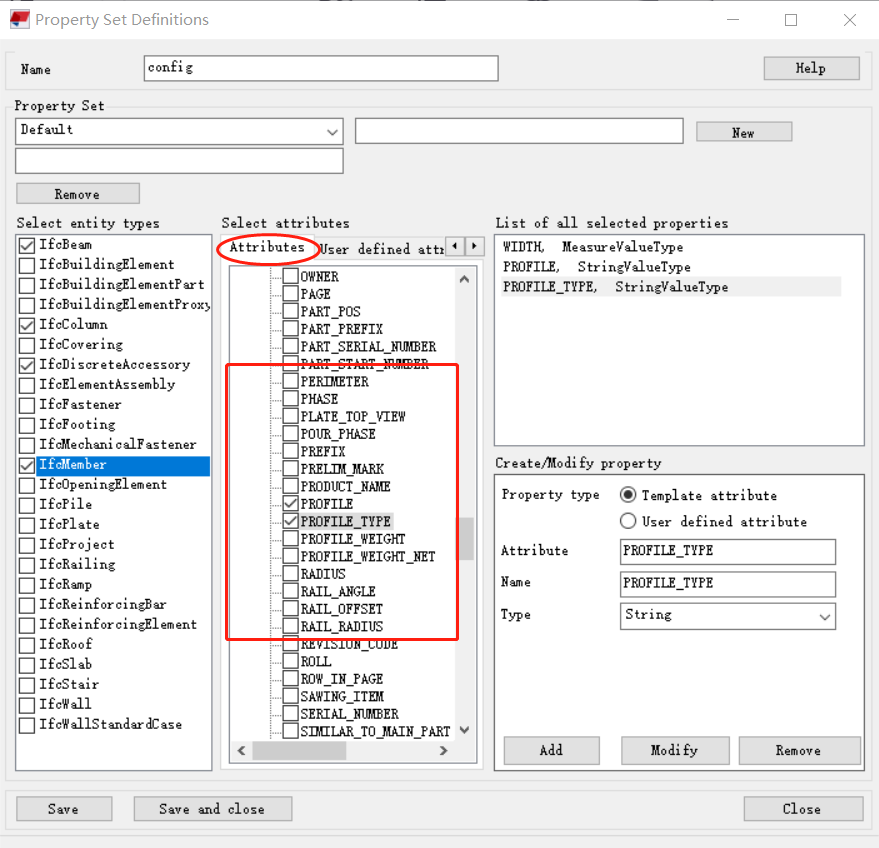
Furthermore, when selecting attributes, under the 'PART' group, choose the following five properties: WIDTH, HEIGHT, LENGTH, PROFILE, and PROFILE_TYPE.
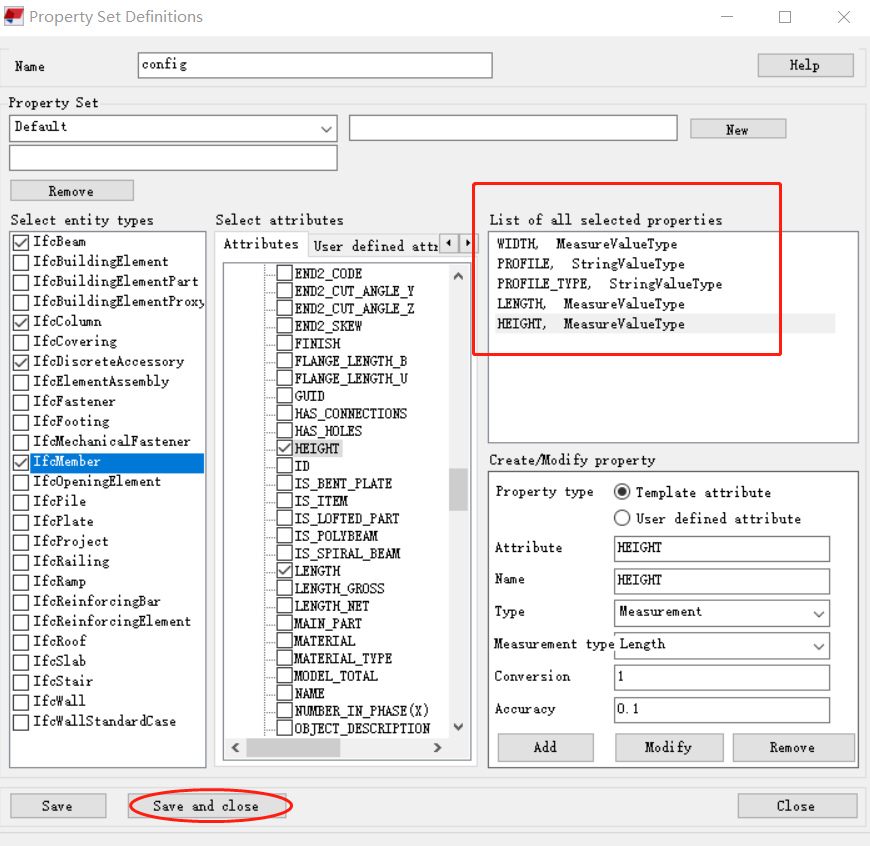
Finally, confirm that the selected attributes are correct in the 'List of all selected properties', and click 'Save and Close'.
Click on the drop-down menu for the attached property settings, and select the attribute setting created in the previous step.
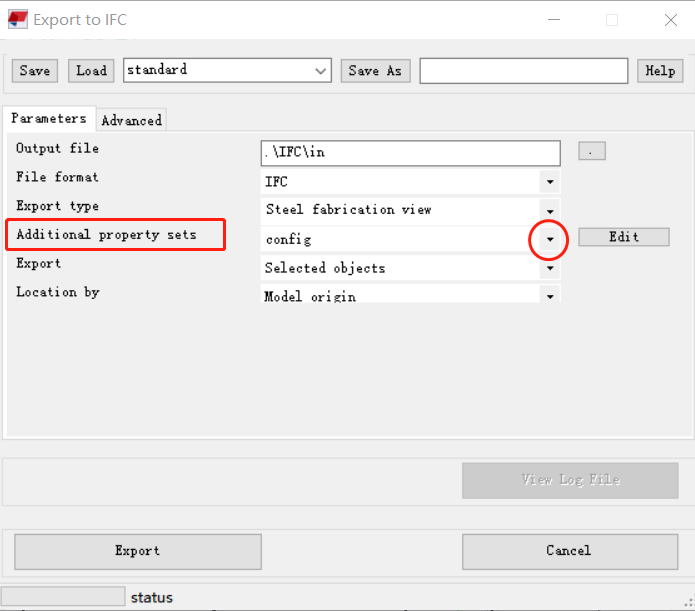
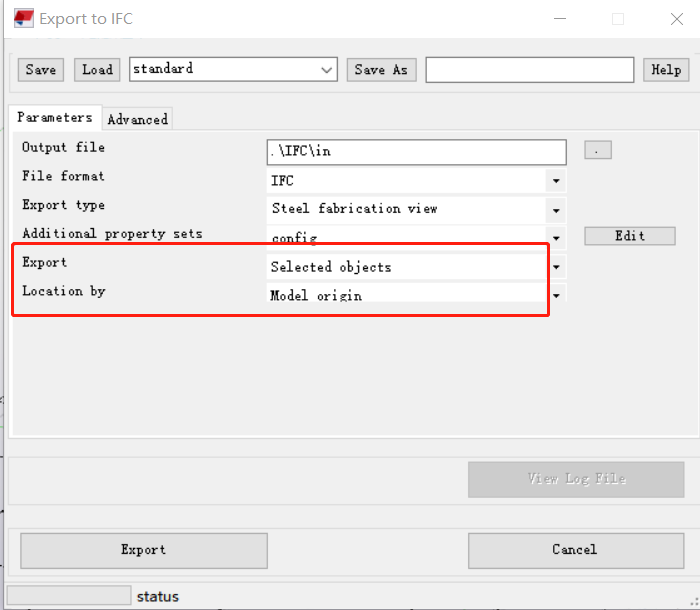
For the output and location selection, use the default options as shown in the figure.
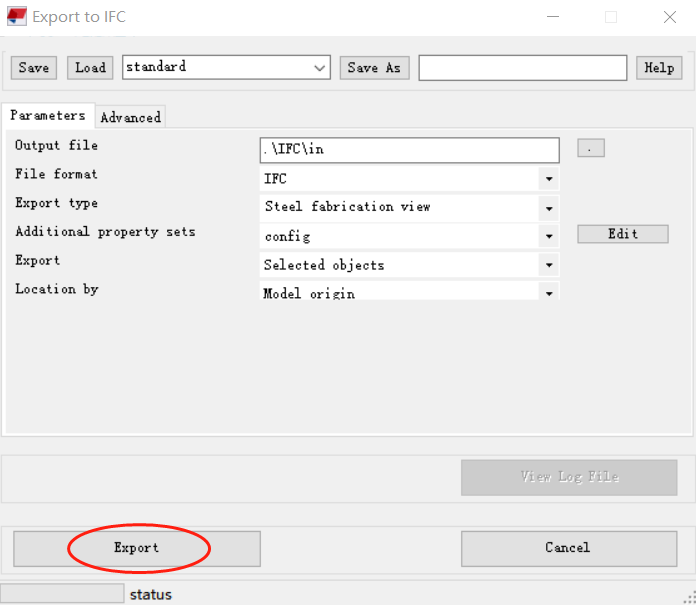
After completing the parameter editing, click 'Export'.
更新時間:2022-09-05?

Function Description
Extract part information from a 3D model file in the IFC format, automatically sort out H-beams and box beams from the model, and then split the sorted profiles, achieving seamless integration between steel structure profiles and flat nesting, and flat cutting systems. This process enables these profiles to be more conveniently used in subsequent manufacturing and processing workflows
?
Export parts from Tekla
Open any project in Tekla. Use the mouse to select the part of the model that needs to be split.?
Select "File" from the main menu in Tekla, and then select the "Export" submenu.?
In the "Export" dialog box that appears, select the IFC file format you want to export to and?set the path to Output File in the pop-up window.
?
If you need to display bolt holes, select the 'Steel Structure View' as the Export type.
?
Click on 'Edit' to make necessary additional settings for the Additional property sets.
?
On the attribute setting definition interface, begin by naming the property for easy reference in future use.
Next, select the entity types and check the following four types: IfcBeam, IfcColumn, IfcDiscreteAccessory, and IfcMember.
?
Furthermore, when selecting attributes, under the 'PART' group, choose the following five properties: WIDTH, HEIGHT, LENGTH, PROFILE, and PROFILE_TYPE.
Finally, confirm that the selected attributes are correct in the 'List of all selected properties', and click 'Save and Close'.
Click on the drop-down menu for the attached property settings, and select the attribute setting created in the previous step.
For the output and location selection, use the default options as shown in the figure.
After completing the parameter editing, click 'Export'.
更新時間:2022-09-05?

